How I stopped Android Auto overheating my phone: 8 tricks to try
Android Auto overheating can ruin a drive. Artie Beaty shares 8 simple tricks like using a wired connection and turning off the screen to keep your phone cool.
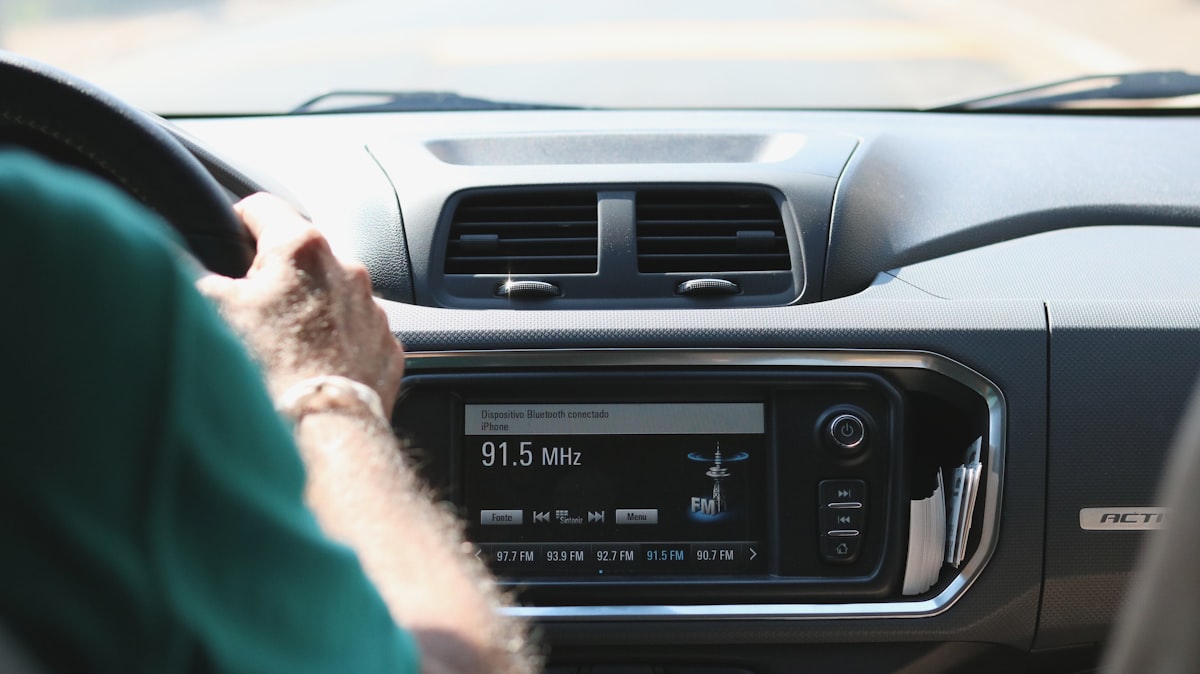
Android Auto overheating sneaks up. One minute you're following a map across town, streaming a podcast, and charging your phone, but the next minute your screen flashes a temperature warning and everything grinds to a halt. So for Artie Beaty, a contributing writer at ZDNET, the scenario played out several times before he decided to find a real fix.
The frustration is familiar to anyone who uses Android Auto regularly. Your phone is navigating, streaming music, sending data, and charging all at once. It is a lot to ask of a device. Especially if you live somewhere warm. Beaty started seeing high temperature warnings on his own phone and found himself forced to disconnect or shut down the device at the worst possible moments.
Beaty documented eight tricks that made a measurable difference. None of them require technical expertise. Most cost nothing. And some are so obvious you will wonder why you did not try them sooner.
The First Four Fixes
Go Wired
Wireless Android Auto constantly juggles Wi-Fi and Bluetooth together. That dual radio work generates extra heat. Switching to a wired USB connection takes some of that workload off the phone. Beaty recommends it as the first line of defense against Android Auto overheating.
Strip the Case
Phone cases trap heat. Rugged or heavy cases trap even more. Beaty suggests removing the case on long drives, giving the device a little breathing room. It is a small change that can have an outsized effect when the phone is already working hard.
Kill the Screen
Your phone's display is a power hog, and power consumption translates directly into heat. Since Android Auto pushes everything to the car's dashboard screen, there is rarely a reason to keep the phone's own display lit. Turn it off. Or at least dial the brightness way down.
Use Your AC
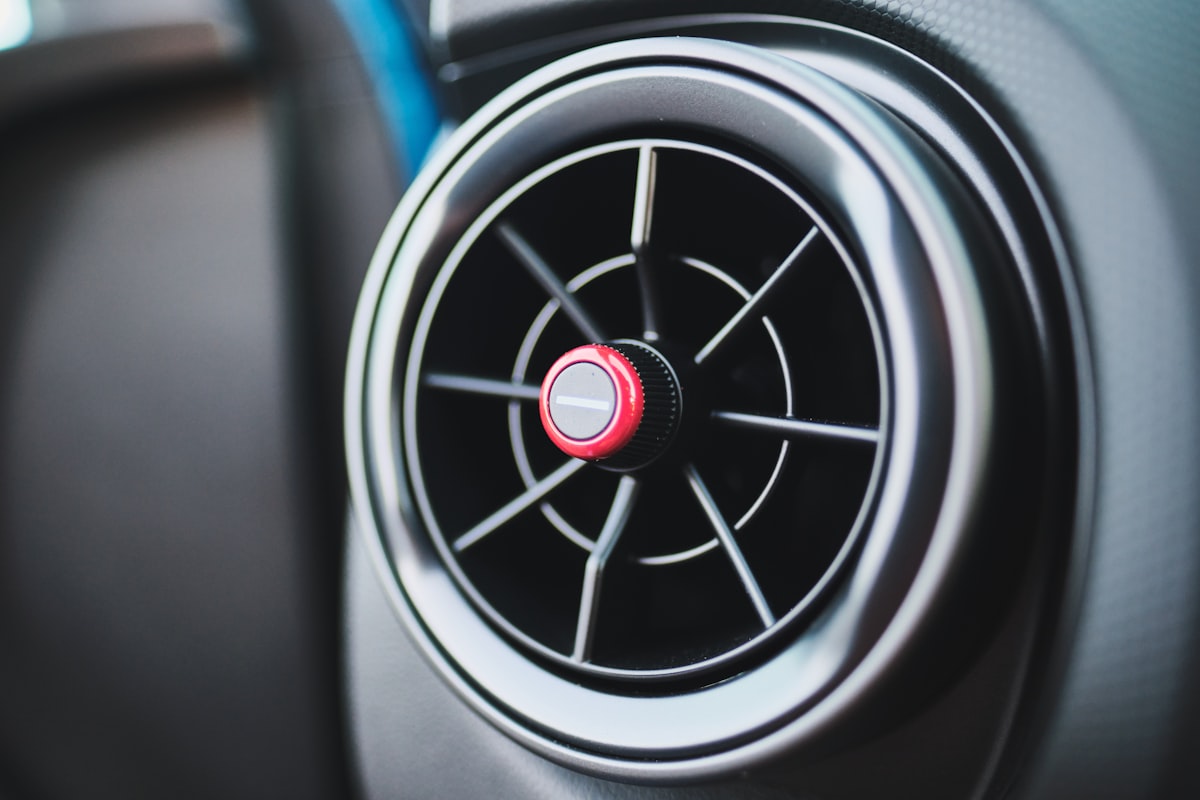
It's almost too simple. But Beaty swears by it, pointing one of your car's air conditioning vents directly at the phone, and the airflow works like it does for a gaming PC by pulling heat away from the internals. He notes that there are even phone mounts that clip into vents, and some double as wireless chargers. Android Auto overheating can drop off almost immediately with a simple redirection of a vent.
The Next Four Fixes
Quality Cables Only
Now for the awkward part. Many people blame their phone when the real culprit is a cheap or worn-out cable. Android Auto pushes a lot of data, and a failing cable causes the connection to drop and reconnect repeatedly. That cycle draws more power and builds heat fast. Beaty recommends a high-quality cable no longer than three feet, with solid support for both fast data transfer and charging.
Close Unnecessary Apps
Background apps are silent heat generators. The usual culprits include:
- Social media apps refreshing feeds in the background
- Photo backup services constantly syncing
- Messaging apps pinging for updates
- Shopping apps running hidden processes
On older devices, the impact is even more pronounced. Beaty goes further: restart the phone before firing up Android Auto. A clean slate means fewer processes competing for resources, and that directly helps prevent Android Auto overheating.
Offline Maps
Navigation apps pull enormous amounts of data while in use. On a long road trip or a drive through spotty service areas, the constant data pulling heats things up. Downloading maps ahead of time reduces that strain considerably. You will still get real-time traffic and accident reports as long as you maintain a connection. But the base map data lives on the device, not in the cloud.
As Beaty noted, 'I've seen high temperature warnings on my phone several times while using Android Auto, and it's frustrating to have to disconnect or even turn off your device when you need it most.
Disable Fast Charging
And this is where it gets interesting. Fast charging is convenient, but it generates more heat than standard charging. Under normal conditions, phones handle it fine. Add navigation, streaming, and data transfer into the mix, and the extra thermal load can push things over the edge. Beaty points out that repeated charging sessions in a hot car are bad for battery health anyway. Switching to slower charging makes sense even if Android Auto overheating has not yet become a problem for you. The toggle lives in your phone's settings.
What the Experience Teaches
There is one detail worth pausing on. None of these fixes requires buying new hardware or installing complex software. The most technical step involves toggling a setting or swapping a cable. Yet collectively, they solve a problem that routinely forces drivers to pull over and let their phones cool down.
Beaty's eight tricks boil down to one principle: reduce the phone's workload and give it room to shed heat, while wired connections, offline maps, fewer background apps, and slower charging push that way. But it's all about heat. Removing the case and aiming an AC vent handle the thermal side of the equation. Here is a quick summary of what made the biggest difference:
- Switch from wireless to a wired USB connection
- Remove the phone case on long drives
- Turn off the phone display or lower brightness
- Point an AC vent toward the phone
- Use a short, high-quality cable
- Close background apps or restart the phone
- Download maps for offline use
- Disable fast charging in settings
The Takeaway for Any Driver
Android Auto overheating does not have to be a regular interruption. A few deliberate choices before you start the engine can keep your phone cool through hours of driving. Many of the fixes are free. They are fast. And they are backed by the experience of someone who has watched the temperature warning appear one too many times. Try the wired connection first. Turn off the screen. Close the apps. And if all else fails, let your air conditioning do double duty.
Frequently Asked Questions
What is the first line of defense against Android Auto overheating recommended in the article?
The article suggests switching to a wired USB connection as the first line of defense. This reduces the phone's workload by eliminating the dual radio work of Wi-Fi and Bluetooth used in wireless Android Auto, which generates extra heat.
Why does using a wireless connection contribute to Android Auto overheating?
Wireless Android Auto constantly juggles Wi-Fi and Bluetooth together, and that dual radio work generates extra heat. Switching to a wired connection takes some of that workload off the phone, helping to prevent overheating.
How can adjusting the car's air conditioning help with Android Auto overheating?
The article recommends pointing one of the car's air conditioning vents directly at the phone for airflow that pulls heat away from the internals, similar to a gaming PC. It notes that Android Auto overheating can drop off almost immediately with this simple redirection of a vent.
When is it recommended to restart the phone before using Android Auto to prevent overheating?
The article suggests restarting the phone before firing up Android Auto to create a clean slate with fewer processes competing for resources. This directly helps prevent Android Auto overheating by reducing the phone's workload.
Who wrote the article and what is their main frustration with Android Auto overheating?
The article was written by Artie Beaty, a contributing writer at ZDNET. He was frustrated by his phone flashing temperature warnings while using Android Auto, forcing him to disconnect or shut down the device at the worst possible moments.

Beatrice Novak covers the business of technology, from enterprise software and cloud platforms to the strategy behind the biggest deals. She follows how companies adopt new tools and what it means for the wider economy.
💬 Comments (0)
No comments yet. Be the first!