Essentials Android app Adds 30+ Features
Power users can try the Essentials Android app to unlock 30+ hidden tweaks like App Lock, sideloaded free from GitHub.
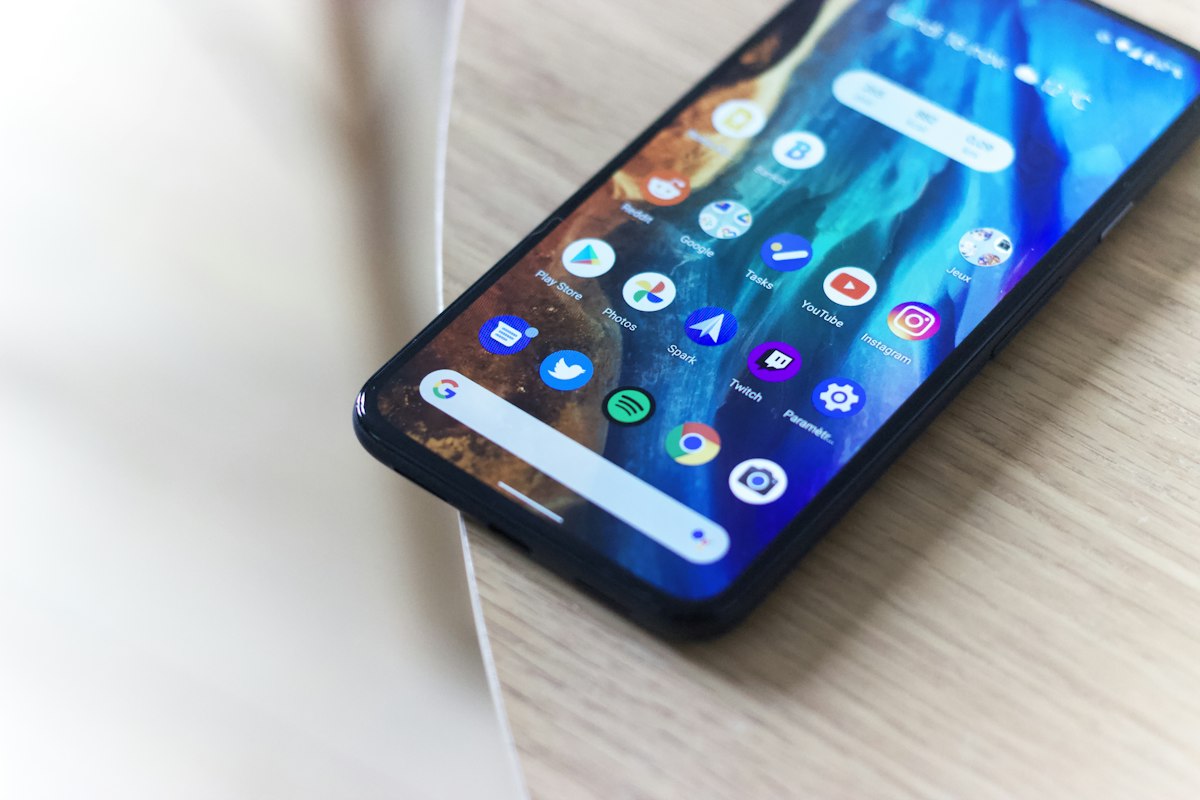
The Essentials Android app delivers a massive collection of power-user customizations directly to your smartphone, effectively bypassing the traditional limitations found in standard menu screens. It's powerful. While Google provides a solid base level of control through standard system menus and hidden developer tools, advanced users don't stop there because they're often hunting for deeper functionality. This software fills that gap. So, it packs more than 30 distinct modifications into a single package, ranging from button remapping and app freezing to specialized battery modes for Google Maps and advanced status bar icon tuning.
It’s truly versatile. By operating beyond standard system constraints, the software provides granular control over sound, haptics, wallpaper, custom widgets, edge lighting, and notification alerts while adding new capabilities. It’s flexible. And for the majority of available features, the minimum requirement is surprisingly light, as it only demands a device running Android 8 or newer to function properly.
Complex features need setup. Because deep tweaks require system-level permissions or shell providers such as Shizuku, and a small selection of tools insists on full root access, it’s a process. But most everyday options function immediately without touching these complex tools.
Installation directly from source repositories
You can't find this software listed on the official Google Play Store, so to install the Essentials Android app, users must manually download and sideload the software package using the official GitHub Repository. Google regularly modifies installation mechanics. So users need to familiarize themselves with updated system prompts before starting.
Granting permissions is central. Without them, you can't unlock the full capabilities of the utility, nor can you make specific tweaks that require manual navigation through deep system menus to toggle functional access. And changing lock screen shortcuts, for instance, requires turning on specific options within the Accessibility Services menu.
Handling restricted security settings
Strict boundaries restrict third-party utilities. So, because modern mobile operating systems place strict boundaries around third-party utilities, users can't give this tool complete operational freedom unless they manually clear the permission blocks placed by the operating system.
- Open the system settings screen on your mobile device.
- Navigate directly to Apps, select the option to see all installed applications, and choose Essentials.
- Locate the three-dot menu icon in the top corner of the screen.
- Tap the option to allow restricted settings to prevent system permission blocks.
Without adjusting these specific permissions, system security measures will restrict the modifications from functioning correctly.
Securing private software with built-in app locking
It's remarkably straightforward. Once you finish the initial security clearance, you simply launch the application, run a quick search for the desired feature, and switch the toggle to turn it on. But while the continuous stream of permission prompts can feel tedious, it's the ultimate level of device control that makes the effort worthwhile for every user who wants total command. Use it.

Google missed it. But App Lock stands out as one of the most useful features missing from standard system releases. By forcing an authentication step before selected applications can open, it's an extra layer of defense that keeps sensitive applications like banking programs completely shielded if an unlocked phone falls into someone else's hands.
To use this feature, you have to grant Essentials permission for Accessibility features, which you'll be prompted to do when you go to enable it.
Setting up security requires visiting the Security and Privacy menu inside the interface. Toggle the main App Lock. And doing that prompts a request for Accessibility permissions, so once they're cleared, opening the setting forces a quick identity check using a fingerprint scan, facial recognition, or a saved password and PIN.
From there, when you tap the toggle next to sensitive applications, security tools like Authy, mobile banking applications, and text messages instantly gain dedicated lock screens. Anyone can tap those icons. So the next time they do, the phone can't grant access before demanding a physical fingerprint read.
Customizing status alerts and visual signals
Notification controls define the package. Tucked within the Notifications and Alerts sub-menu, these tools let you configure custom edge lighting, flash pulses, and targeted system notification snoozing to your preference. You can selectively assign edge lighting to individual communication platforms, which ensures that critical alerts stand out instantly so it's impossible to miss them when they're important. Control matters.
Assigning visual lighting to phone calls and text messages ensures you won't miss critical contacts. It's true on silent mode. So flashlight pulse alerts offer a similar peace of mind, signaling incoming activity whether the device screen sits facing upward or face down on a desk.
Advanced permission options using Shizuku
Rooting a modern phone's hard. But while it remains a difficult step for many users, thankfully open-source bridging tools help bridge the gap because they don't require a full root process.
- Download the Shizuku utility directly through the Google Play Store.
- Access system developer tools to enable wireless debugging features on your device.
- Connect Shizuku to obtain system-level APIs and ADB privileges.
- Launch your specialized tweaks within the Essentials Android app interface.
This approach gives system-level access to advanced users without forcing them to break their phone's core security structure completely.
Unlocking total command over mobile hardware
It's deep control. So by bypassing conventional software limits, using the Essentials Android app transforms an ordinary smartphone into a fully customizable hardware platform that puts it directly back into the hands of the owner.
Patience is mandatory. Navigating the complex layers of security prompts and adjusting each accessibility switch takes a lot of time, yet the results are worth the wait. But the end result is a cleaner, more responsive device that's tuned precisely to your daily workflow.
It's a powerful toolkit. So for power users seeking complete control over their mobile devices, downloading this utility remains a vital upgrade path because it delivers modifications that simply aren't available in generic system menus.
Frequently Asked Questions
What is the minimum requirement for a device to run the Essentials Android app?
For the majority of available features within the application, the minimum requirement is that the device must be running Android 8 or newer. This relatively light requirement allows a broad range of devices to function properly with the software.
Why is the Essentials Android app not available on the official Google Play Store?
The article does not specify a reason for its absence, but it confirms the app is not listed on the official Google Play Store. To install the software, users are required to manually download and sideload the package from the official GitHub Repository.
How can users bypass the need for full root access when using advanced features?
Users can utilize open-source bridging tools like Shizuku to bridge the gap without performing a full root process. By enabling wireless debugging in developer tools and connecting Shizuku, users can obtain system-level APIs and ADB privileges to access advanced tweaks.
What steps must a user take to prevent the operating system from blocking the Essentials app's functionality?
Users must manually clear permission blocks by navigating to the Apps section in their system settings and selecting the Essentials app. From there, they must tap the three-dot menu icon in the top corner to allow restricted settings, ensuring that system security measures do not interfere with the app's modifications.
What is the function of the App Lock feature, and how is it secured?
App Lock provides an extra layer of defense by forcing an authentication step before selected sensitive applications can be opened. Once the feature is enabled via the Security and Privacy menu, access requires a quick identity check through a fingerprint scan, facial recognition, or a saved password and PIN.

Adrian Zeller writes about startups, funding and the markets that shape the technology industry. He looks for the story behind the numbers, tracking how young companies scale and where the next opportunities lie.
💬 Comments (0)
No comments yet. Be the first!