Speed Up Your Android Phone: 5 Proven Free Tips
Is your phone lagging? Beyond clearing cache, these five free tips can help you speed up your Android phone effectively.

You clear your cache when things get sluggish, but that often ignores deeper issues. Don't settle for a slow device. So speed up your Android phone using these five proven methods that go beyond the basic system cache clear, and if you want a device that feels like new again, you need to dig a little deeper into the software settings.
Clear your app data
Clearing your cache is just the surface. But sometimes, you need to hit the reset button on specific apps to get them back to their peak performance, and this process essentially functions like a fresh reinstall without the hassle of the app store.
Long-press the app icon on your home screen. Or you can navigate through your system settings to find the right option, then select Storage and tap Clear data. But be aware, this will likely sign you out of your accounts. It's a small price to pay. That price wipes away lingering bugs and glitches that bog down performance.
Manage your background apps
Unused apps are silent performance killers. Each app installed on your phone can potentially draw resources, even when you're not actively using it, and that's a hidden drain you probably don't notice. But you've got two main ways to reclaim that lost power.
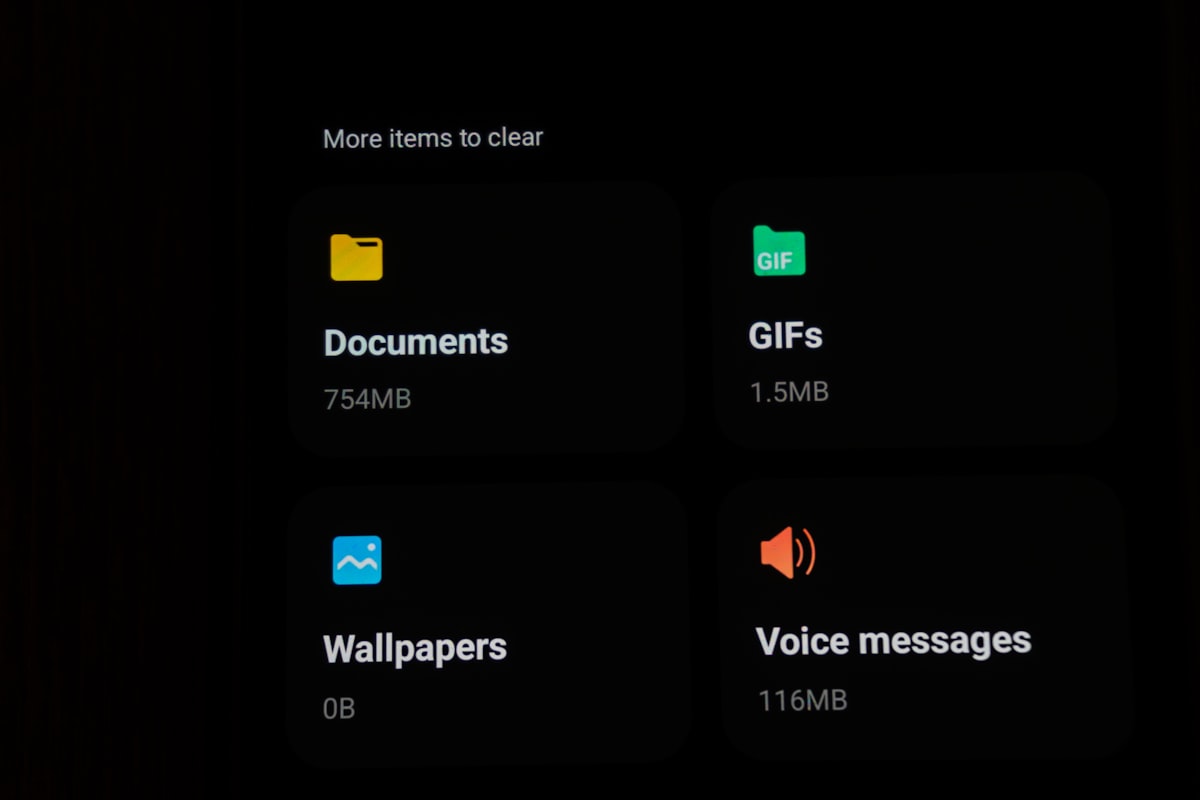
- Uninstall apps you no longer use.
- Force stop apps to halt all background activity.
Most modern phones have built-in power management tools to detect these idle apps for you, so you don't have to manually hunt them down if you don't want to. Check your device settings to ensure these features are enabled. But if the system does not catch everything, doing it manually is a quick way to stop unnecessary background processing. It's simple.
Tweak your animation scales
Your phone feels slow? Reduce the time it spends on visual transitions. You can unlock the hidden developer menu first by going to your system software page and tapping the build number seven times until the system confirms the menu is unlocked.
Once you are in the developer options, look for three specific settings:
- Window animation scale
- Transition animation scale
- Animator duration scale
Change each one from the default 1x setting to 0.5x. You will cut the animation time in half, making every screen unlock and app launch feel significantly snappier.
Try a different launcher
Your launcher is the home screen environment you interact with every single day. But if the default one’s heavy, your phone will feel slow , no matter how much storage you clear. You can't ignore that drag. Switching to a more streamlined option like Niagara Launcher can completely change how the device feels and operates, giving you a faster, lighter experience from the moment you unlock it.
These third-party alternatives often prioritize minimal designs and better gesture support. So you can swipe for quick actions or access contacts without digging through layers of menus, and a faster interface translates to a faster user experience. It's clean.
Master the manual restart
Sometimes, a simple reboot is the most effective tool in your kit. But it's not just about fixing a glitch. A weekly restart clears out temporary processes that might have hung in the background, giving your machine a chance to start fresh without all that clutter. It's a necessary reset for any long-term stability.
Why older versions matter
A new update can introduce bugs that ruin your battery life or crash the app entirely. Don't wait for a patch. But you can sideload older versions of apps to restore stability and avoid those frustrating issues that make your phone unusable.
Use reliable sources like APKMirror or APKPure to find stable legacy versions. But don't skip this step. Always uninstall the current app before installing the older file, because that keeps your core tools running smoothly while you wait for developers to fix their new software releases.
The power of a fresh start
Automation can keep your device healthy without you having to think about it. It's simple. Many devices now include features to make maintenance easier, but Samsung users have built-in options to handle this without any extra effort on their part.
Auto Optimization allows you to set a specific time and cadence for your phone to perform an Auto Restart, keeping the system fresh without manual intervention.
Your specific model may lack an auto-restart timer. So set a weekly reminder on your calendar instead. But remember that after a restart, your notifications will not display until you unlock the phone, and it's a small step that keeps your hardware running at its best.
Frequently Asked Questions
What is the most effective method to reset an app's performance without reinstalling it from the app store?
The article suggests clearing the app data by long-pressing the app icon or navigating through system settings, then selecting Storage and tapping Clear data. This process functions like a fresh reinstall without the hassle of the app store, but it will sign you out of your accounts.
How can you reduce the time spent on visual transitions to make your phone feel snappier?
You can unlock the developer menu by tapping the build number seven times, then navigate to the developer options and change Window animation scale, Transition animation scale, and Animator duration scale from 1x to 0.5x. This cuts animation time in half, making screen unlocks and app launches feel significantly snappier.
Why should you consider switching to a third-party launcher like Niagara Launcher?
The article states that if the default launcher is heavy, your phone will feel slow regardless of storage cleared. Switching to a streamlined option like Niagara Launcher can give you a faster, lighter experience with minimal designs and better gesture support.
How often does the article recommend performing a manual restart for long-term stability?
The article recommends a weekly restart to clear out temporary processes that might have hung in the background. It gives your machine a chance to start fresh without clutter, which is necessary for long-term stability.
What should you do before installing an older version of an app to restore stability?
The article advises to always uninstall the current app before installing the older file. This keeps your core tools running smoothly while you wait for developers to fix new software releases.

Adrian Zeller writes about startups, funding and the markets that shape the technology industry. He looks for the story behind the numbers, tracking how young companies scale and where the next opportunities lie.
💬 Comments (0)
No comments yet. Be the first!